Click or press the Windows Logo on your laptop keyboard or desktop.
Type Printer & Select Printer & Scanners
Select Add Devices

This will perform a search across the network for printers that you can add.
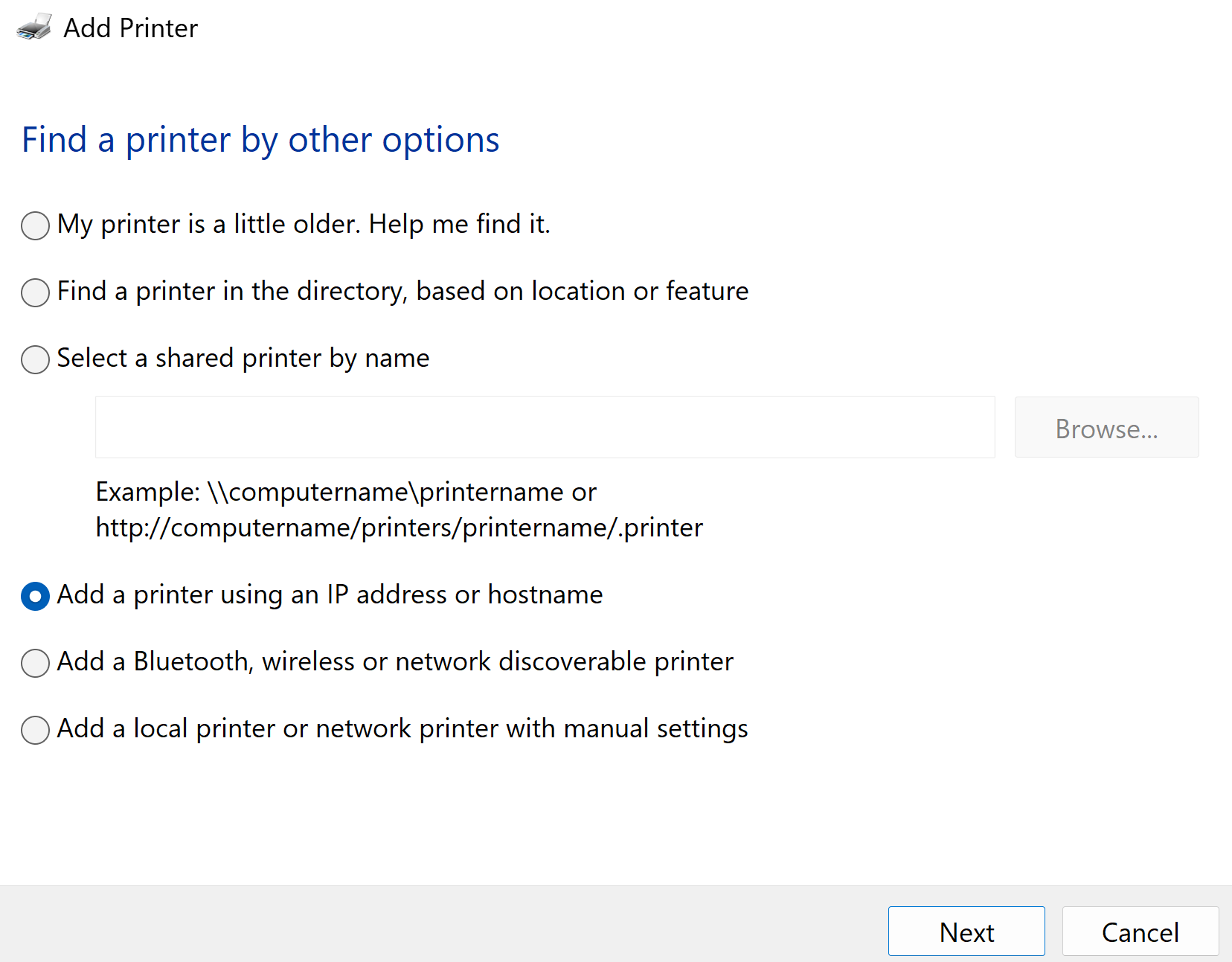
If the printers you are looking for do not appear select Add Manually & select Add a printer using an IP address or Hostname.
Click Next.
Select TCP/IP Device from the drop down menu.
"Enter only the numbers with the dots in-between" for the printer you want to install:
10.0.0.54 (Mail Room)
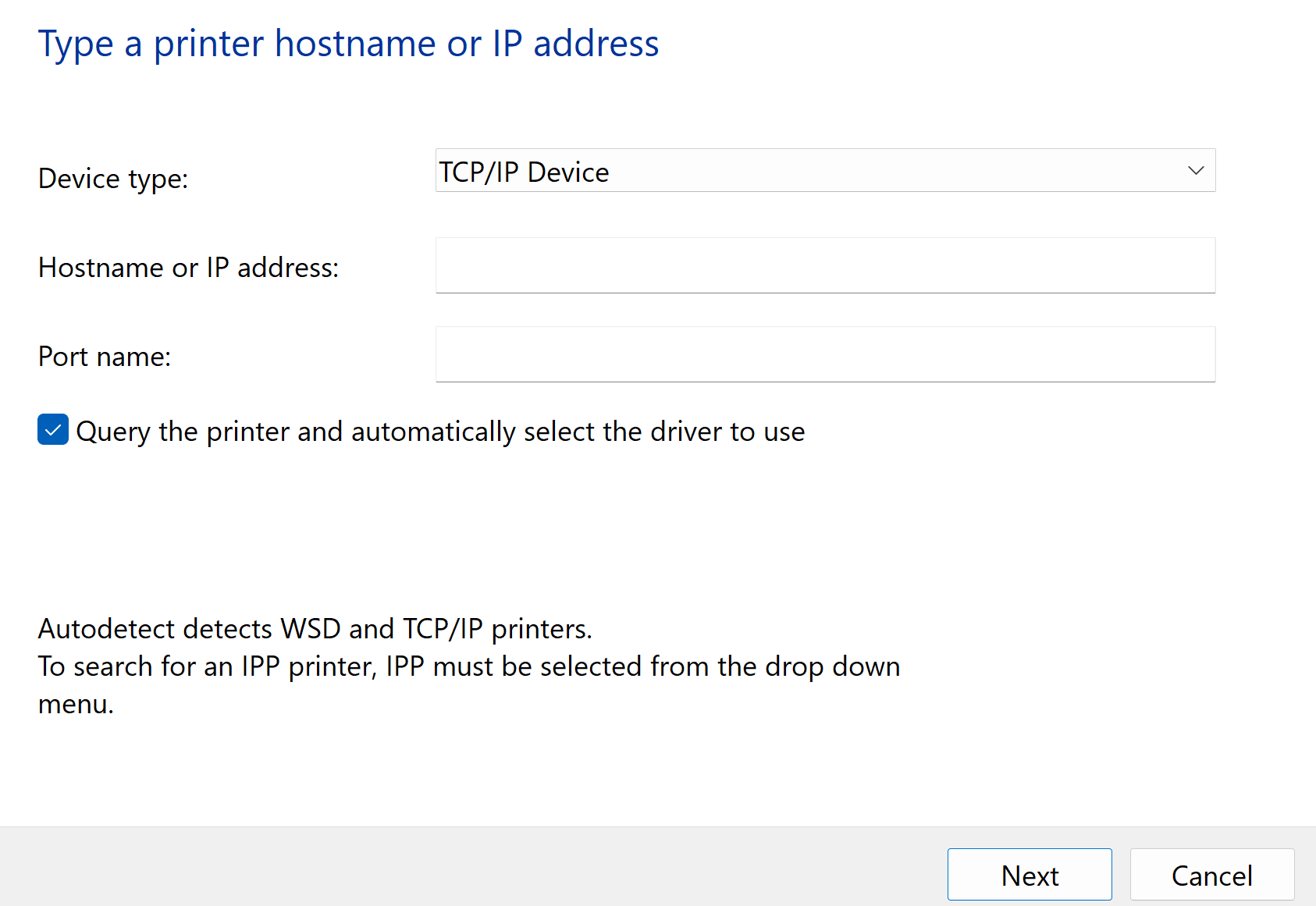
Click next
Now enter the name you would like to give the printer for example "Savoy"
Click next
Select "Do not share this printer"
Click Next
Click Finish
Was this article helpful?
That’s Great!
Thank you for your feedback
Sorry! We couldn't be helpful
Thank you for your feedback
Feedback sent
We appreciate your effort and will try to fix the article