How to Invite Fireflies to your Meetings
FireFlies can only take notes for 2 hours. If your meeting exceeds this time limit you will need to reinvite FireFlies back into your meeting using Method 2 shown below.
Method 1: Calendar Invites
- Create a meeting Microsoft Outlook Calendar
- Invite fred@fireflies.ai to the meeting
- Include the meeting URL in the description (This will automatically happen if this is a teams meeting)
Method 2: Invite Fred to an ongoing meeting
With this method, you can invite Fireflies' automatic notetaker bot to any ongoing meeting:
- Visit your Fireflies Dashboard
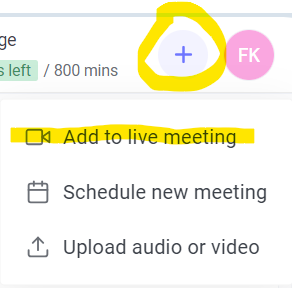
- You'll see A + sign on your right click the + sign and Select Add to live meeting
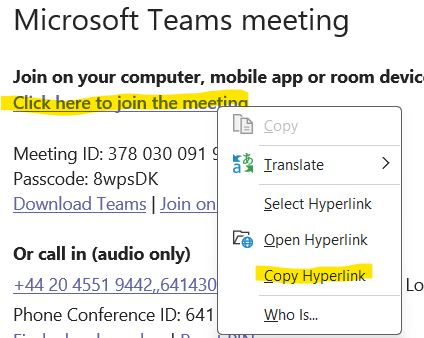
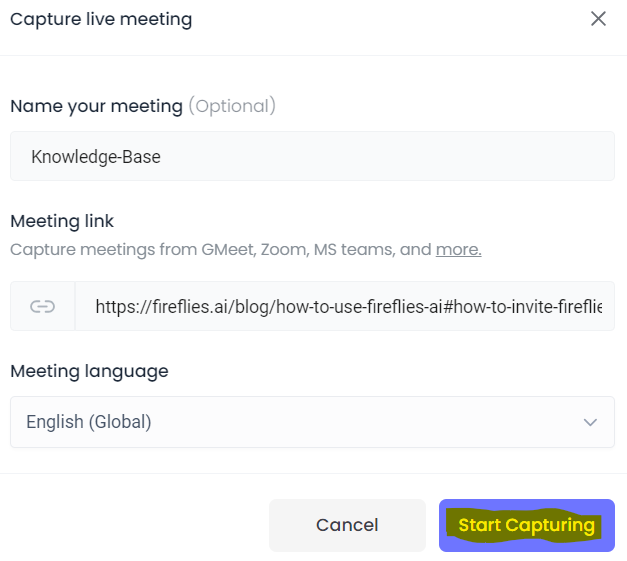
- Type in your meeting name and add the meeting URL & click Start Capturing (Meeting URL can be found in the original meeting invite. Right click on "Click here to join the meeting" & copy hyperlink)
After Your Meeting
How long will it take for Fireflies to process the transcript?
Fireflies will start processing the transcript only after the meeting has ended, or once Fred leaves the meeting.
It usually takes 15 to 20 minutes for Fireflies to generate searchable transcripts with over 90% accuracy. The processing time will also depend on the duration of your call.
After the 15-20 mins post-meeting ends, once the transcript is ready, you'll receive an email notification with a link to the transcript.
The transcript will automatically appear on your Fireflies Notebook. From there, you can view, edit, and collaborate with your teammates using your freshly-generated meeting transcript.
How to share your Fireflies transcript
- Visit your Fireflies Notebook
- Select the meeting you want to share. You can share your meeting by:
- Copying the URL in the address bar
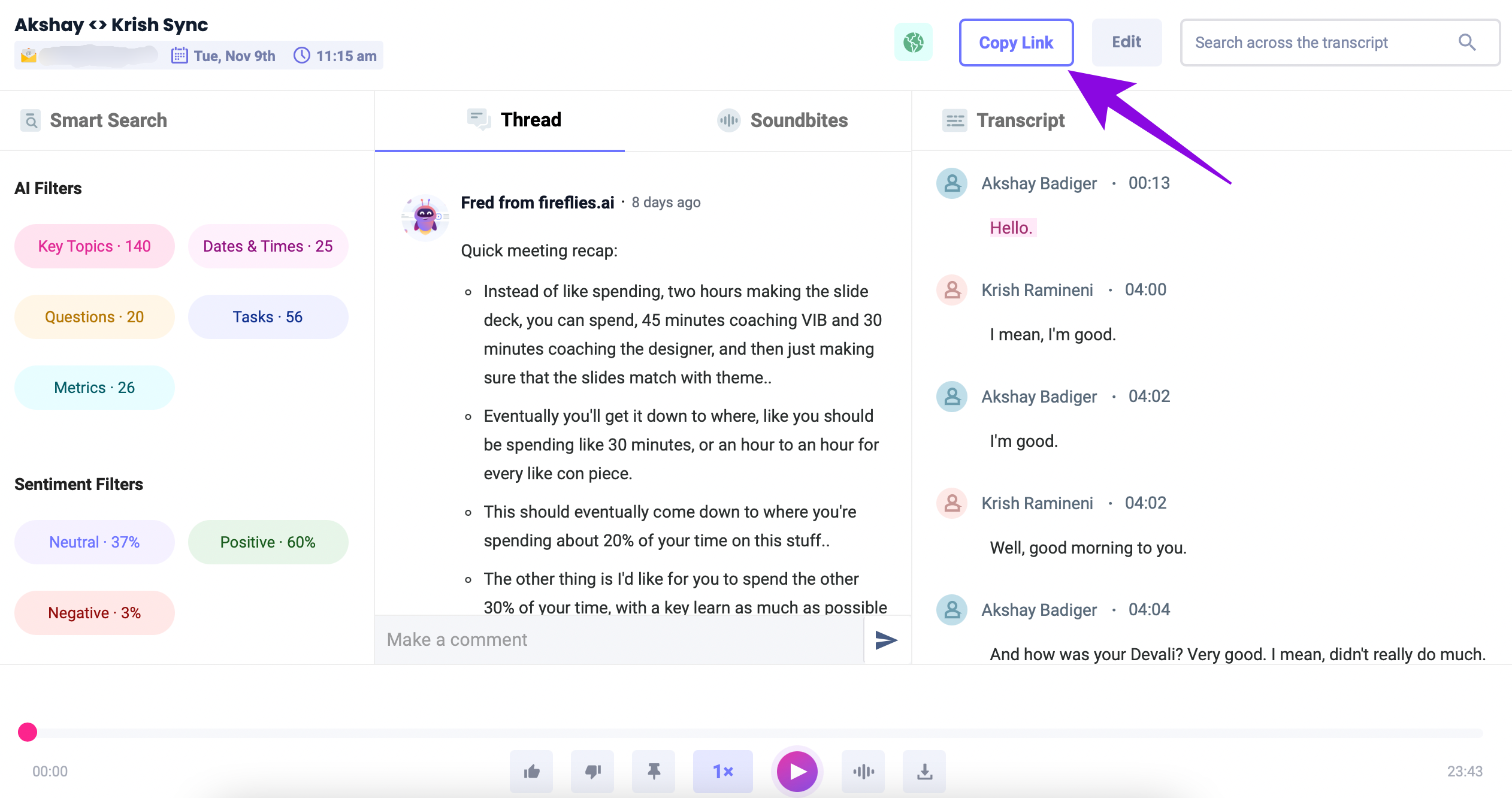
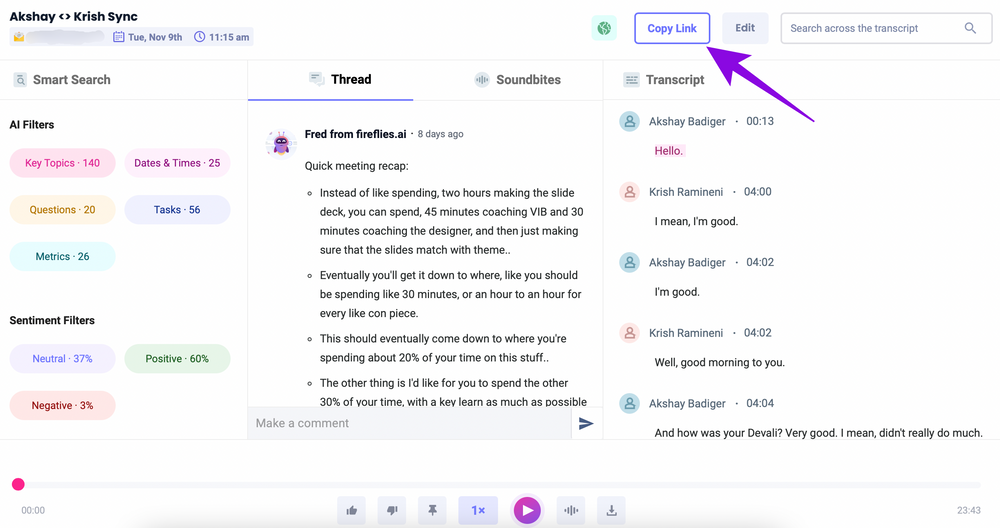
- Clicking the Copy button on the top menu bar
- Finally, click the Padlock icon and select the option Anyone with a link. This ensures other people with the link can view the transcript.
Lunch & Learn how to video
Was this article helpful?
That’s Great!
Thank you for your feedback
Sorry! We couldn't be helpful
Thank you for your feedback
Feedback sent
We appreciate your effort and will try to fix the article