
How to configure joining settings, meeting recap emails and privacy settings – Fireflies Open Fireflies.ai https://app.fireflies.ai/
- By default, Fireflies auto-join meetings and sends meeting recaps to all participants. Use the email settings to control who receives the transcripts and audio/video recaps.
- To access the Email settings, Go to Settings from the navigation bar on the left.
Step1 : Under the Meeting Settings , turn the Auto-join calendar event toggle off
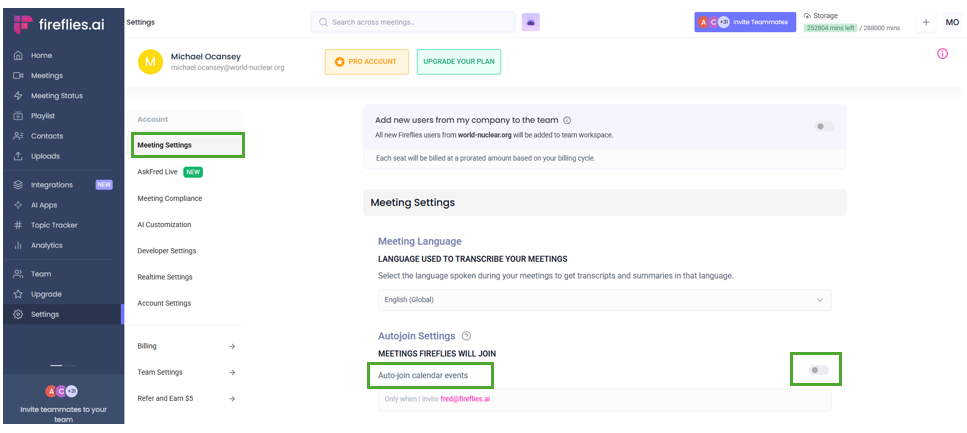
When auto-join is disabled, Fireflies will join meetings only when you manually add it as a participant, specifically by sending an invitation to fred@fireflies.ai
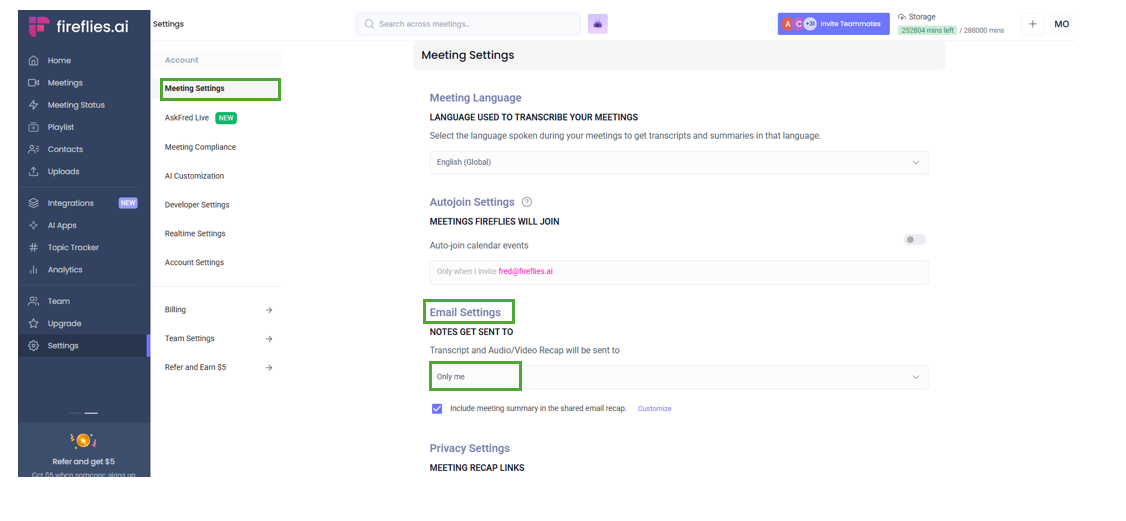
Step 2: Look for Email Settings under Meeting Settings.
In the Email Settings section, under "NOTES GET SENT TO," configure the meeting transcripts and audio/video recordings to be sent exclusively to "Only Me" after the meeting.
Step 3. Privacy Settings
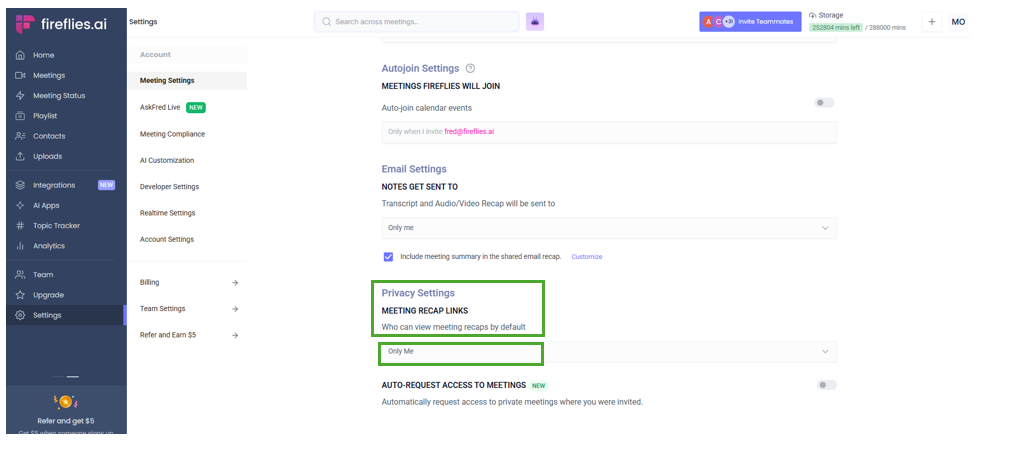
- Go to Settings and look for Privacy Settings under Meeting Settings.
In the meeting recap links section, set the default viewing access for recaps to "Only Me.
- After selecting "Only Me,", a pop-up window will ask if you want to apply this setting to past meetings. Choose Yes, apply to all meetings.
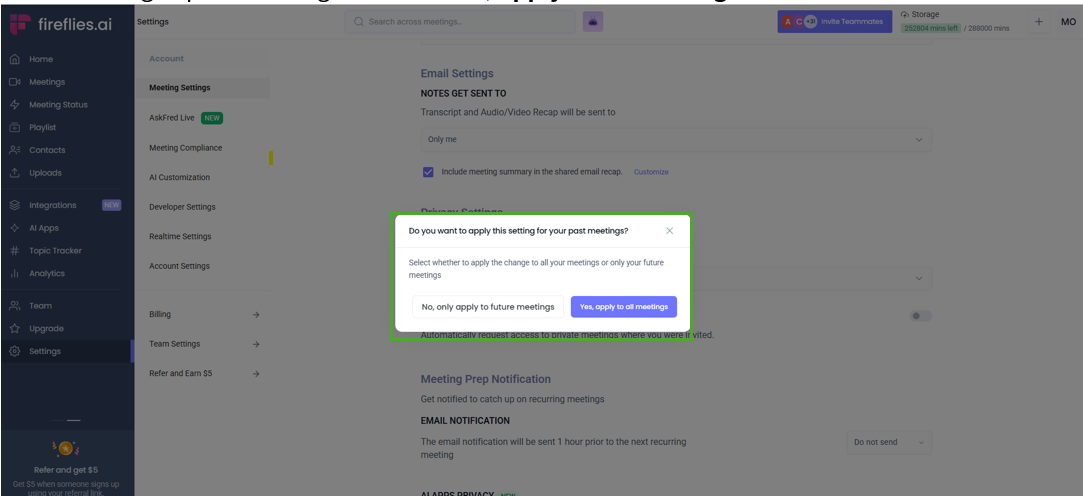
Adjusting the privacy settings will ensure that meeting recaps remain private and are exclusively accessible to you.
Step 4: Confirmation
- After saving, Fireflies will no longer send meeting notes automatically
- You can still manually share notes with selected participants.
“If you have queries or issues, please contact the service desk below for assistance.”
Email: support@world-nuclear.org
Was this article helpful?
That’s Great!
Thank you for your feedback
Sorry! We couldn't be helpful
Thank you for your feedback
Feedback sent
We appreciate your effort and will try to fix the article