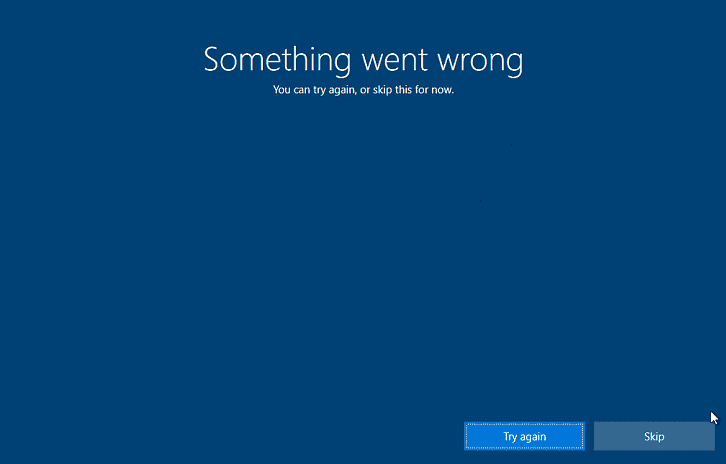
The OOBEEULA error sometimes occurs on startup following a machine reset and can be resolved by making changes to the device’s registry.
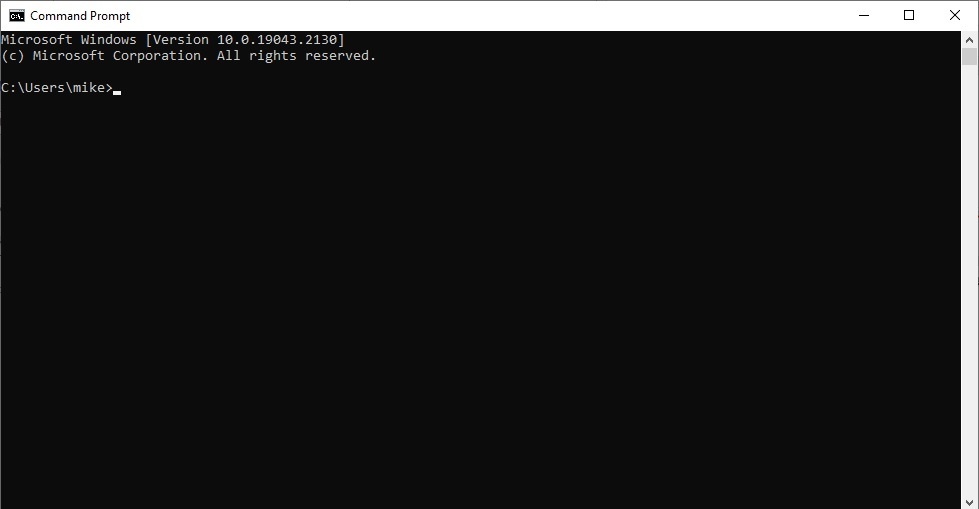
1. At the blue OOBEEULA error screen press Shift + F10 keys together to bring up the command prompt window. Some machines might require the function (Fn) key to be pressed at the same time.
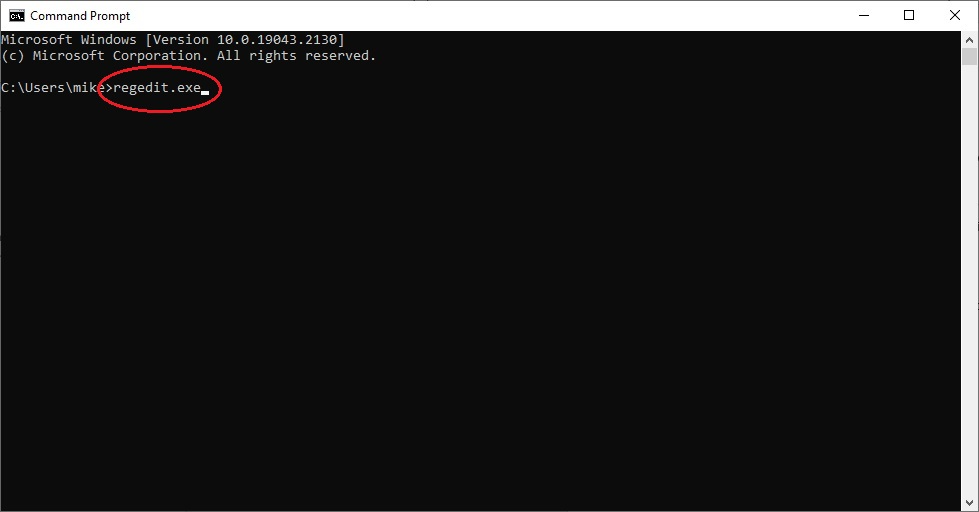
2. At the command prompt type the following command: “regedit.exe” and press enter, to access the registry editor:
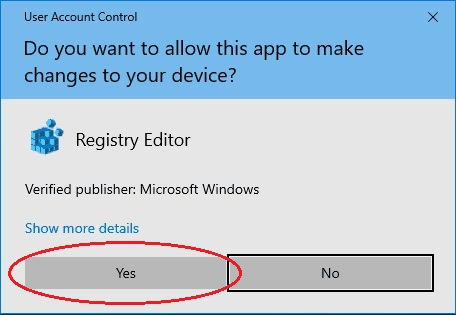
If prompted for verification by User Account Control, click the “Yes” button:
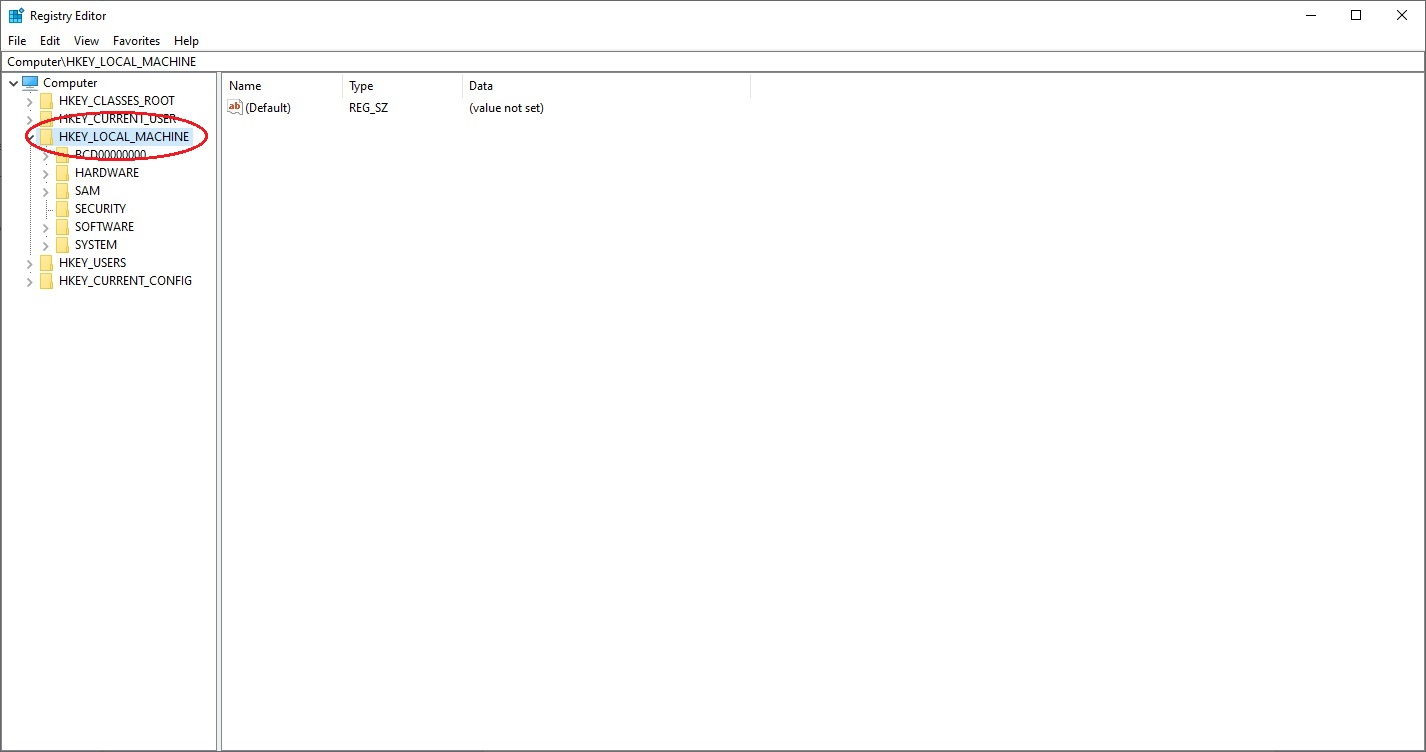
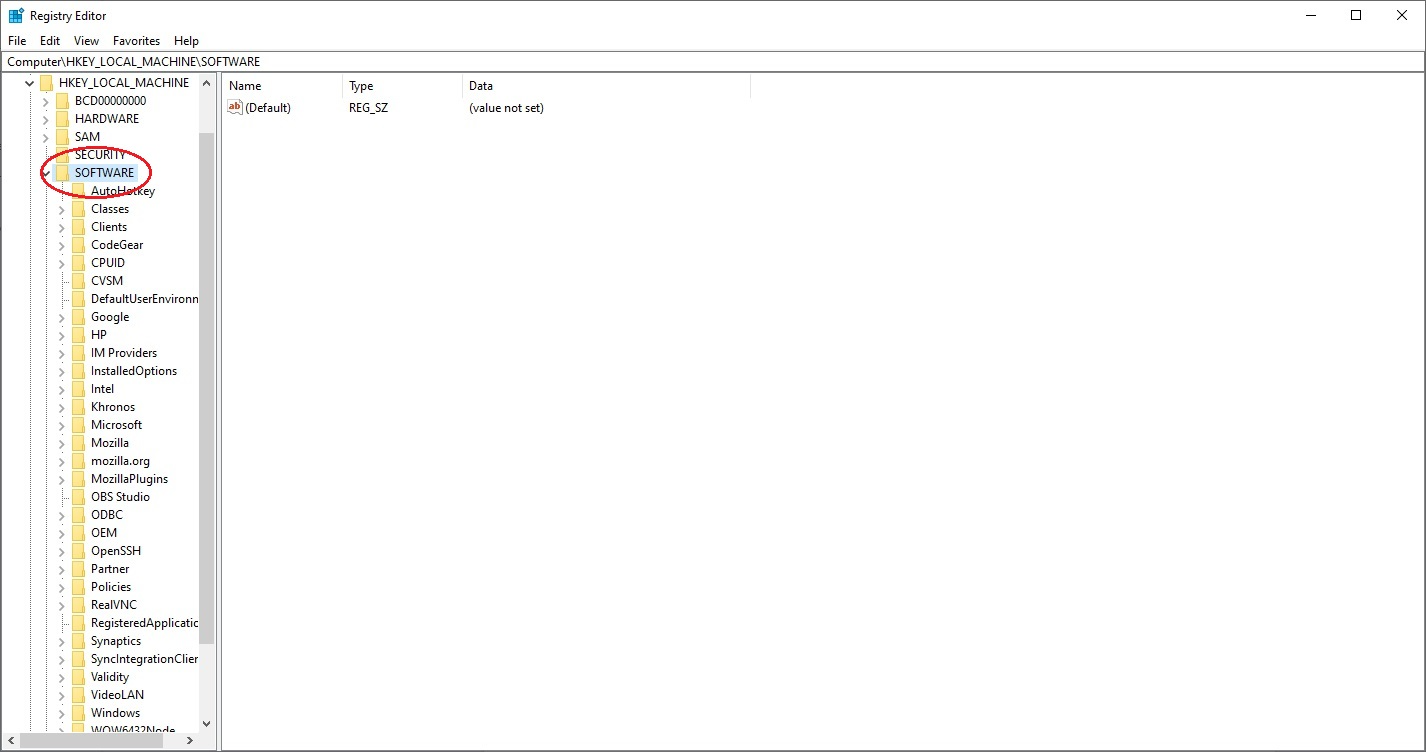
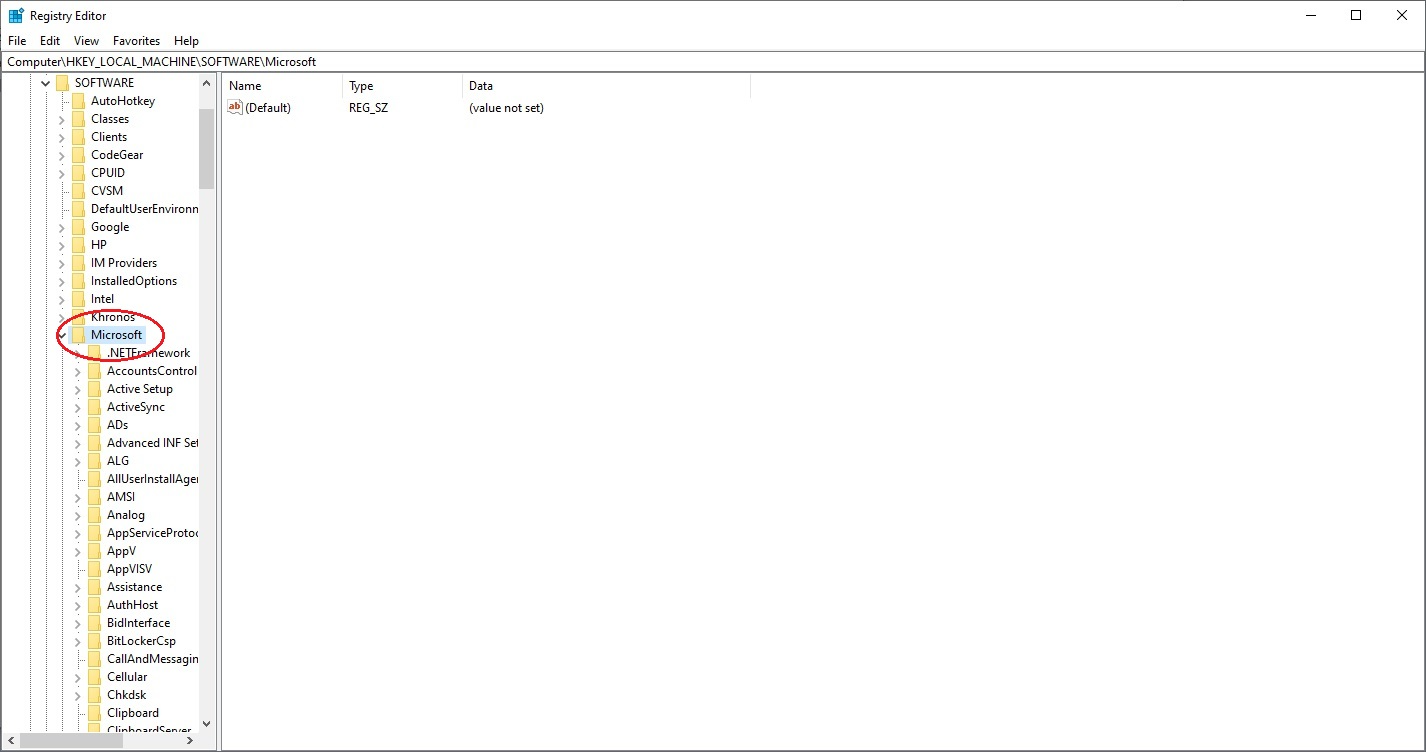
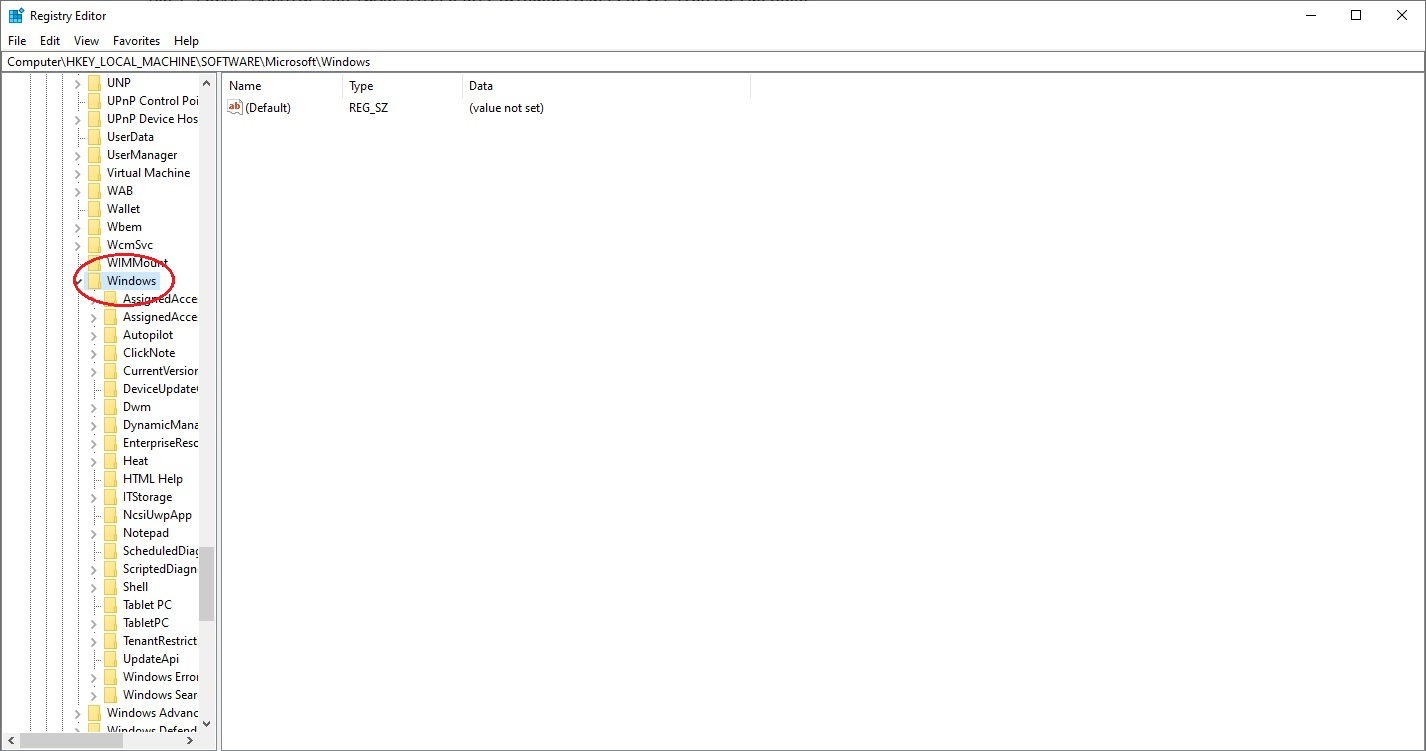
3. Once into the Registry Editor, navigate through the file structure on the LHS of the screen by double clicking on the appropriate folder to expand it.
HKEY_LOCAL_MACHINE:
HKEY_LOCAL_MACHINE\SOFTWARE:
HKEY_LOCAL_MACHINE\SOFTWARE\Microsoft:
HKEY_LOCAL_MACHINE\SOFTWARE\Microsoft\Windows:
HKEY_LOCAL_MACHINE\SOFTWARE\Microsoft\Windows\CurrentVersion:
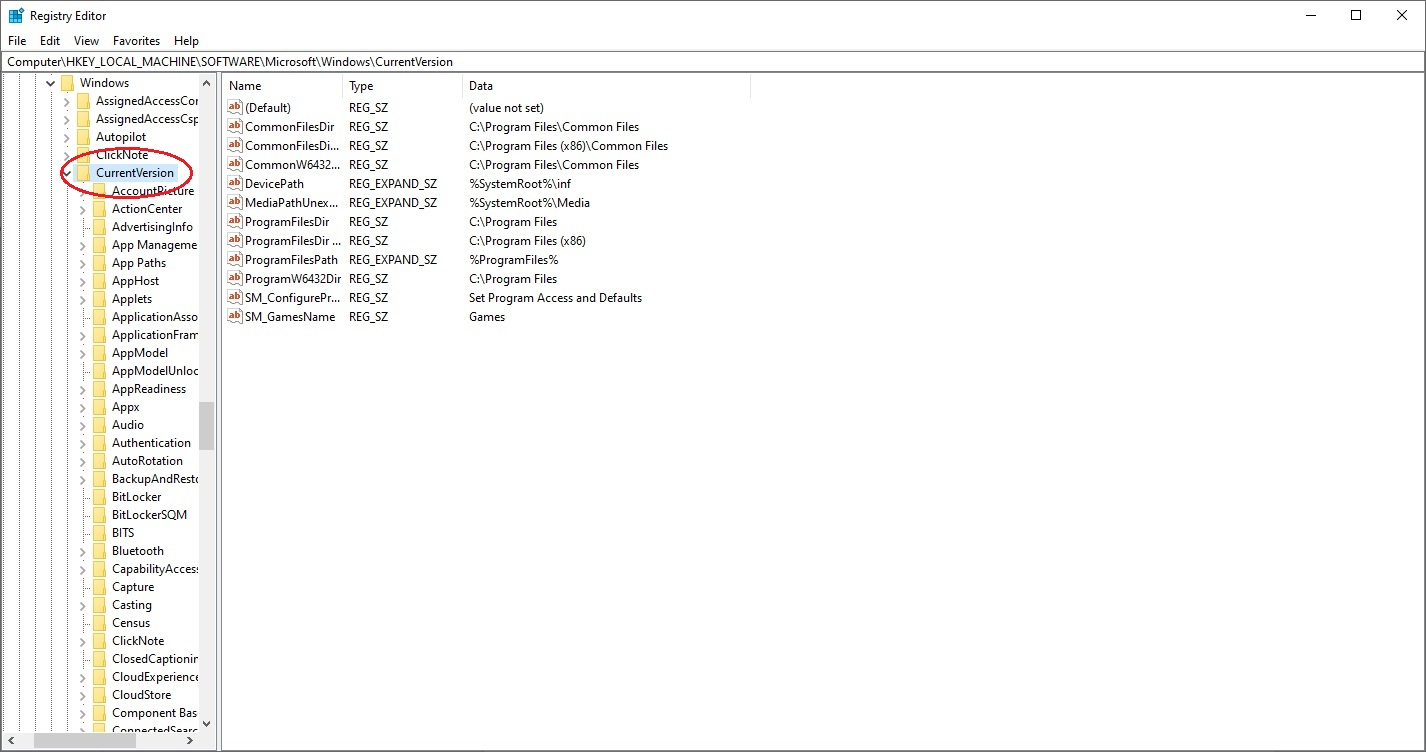
HKEY_LOCAL_MACHINE\SOFTWARE\Microsoft\Windows\CurrentVersion\Setup:
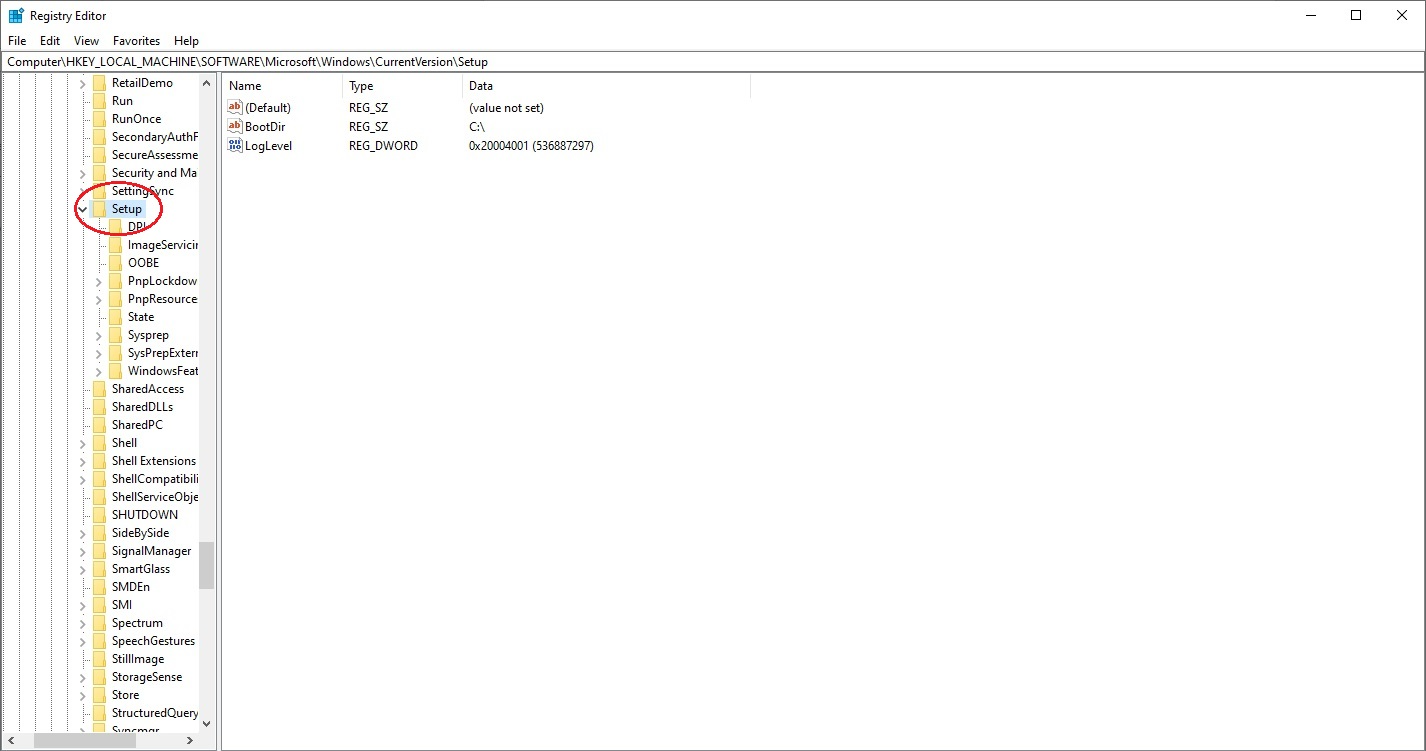
HKEY_LOCAL_MACHINE\SOFTWARE\Microsoft\Windows\CurrentVersion\Setup\OOBE:
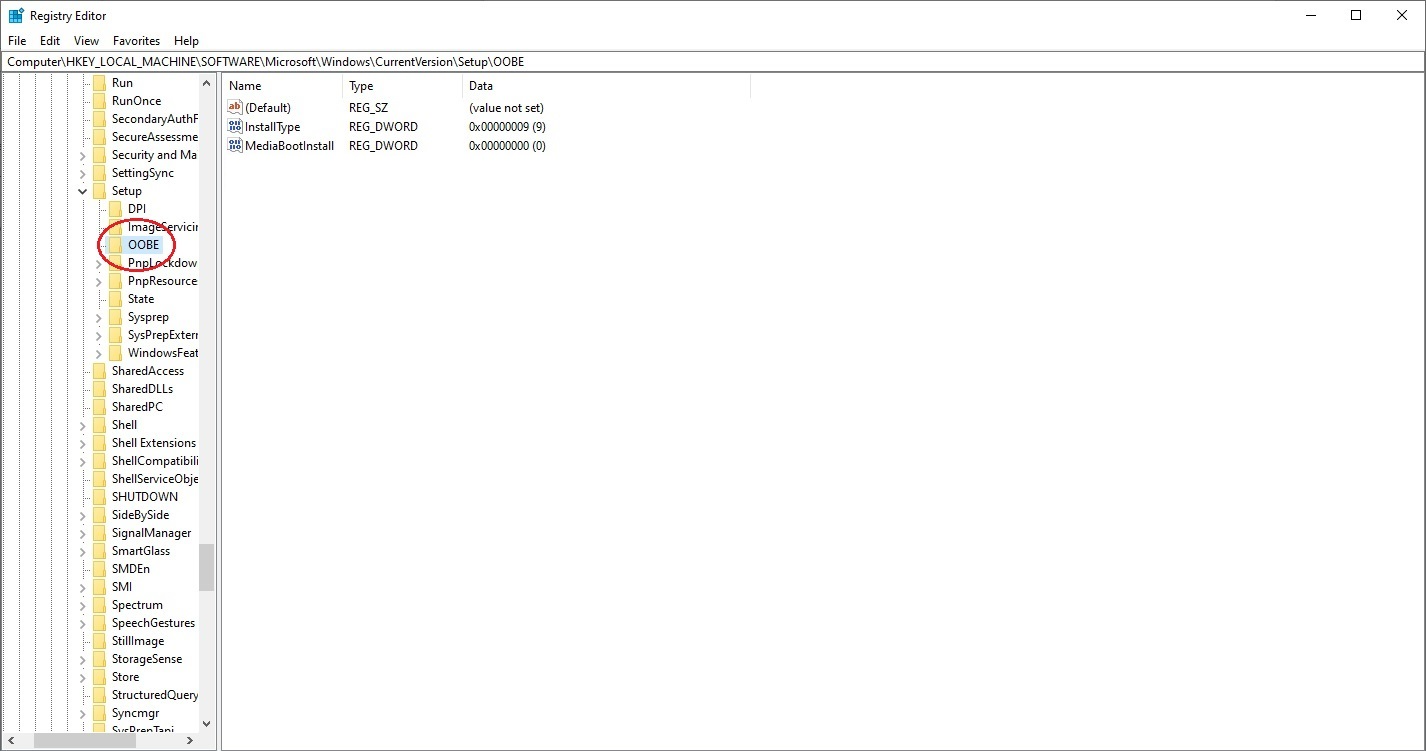
4. Once at HKEY_LOCAL_MACHINE\SOFTWARE\Microsoft\Windows\CurrentVersion\Setup\OOBE, right-click anywhere in the free space in the RHS pane and select New > DWORD (32 bit) Value:
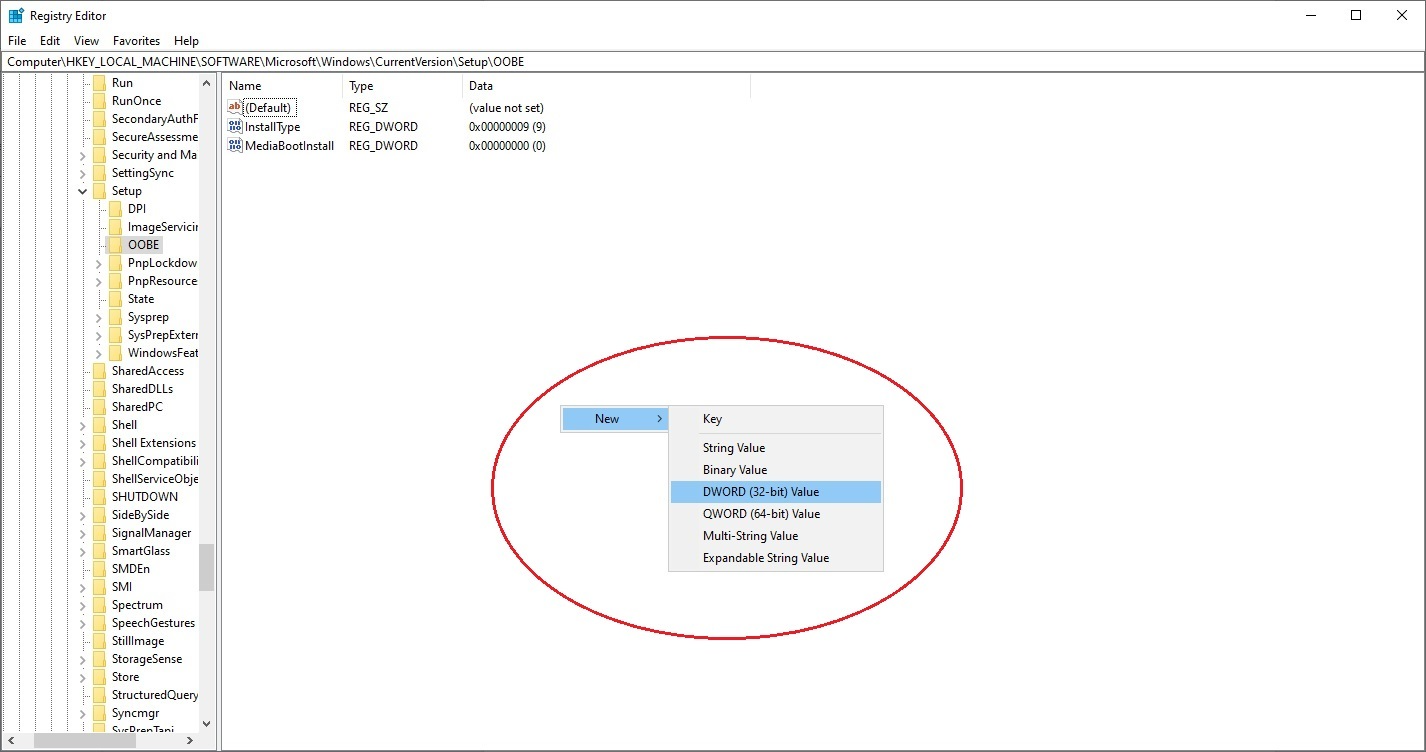
This will create a new entry to the LHS of the RH pane:
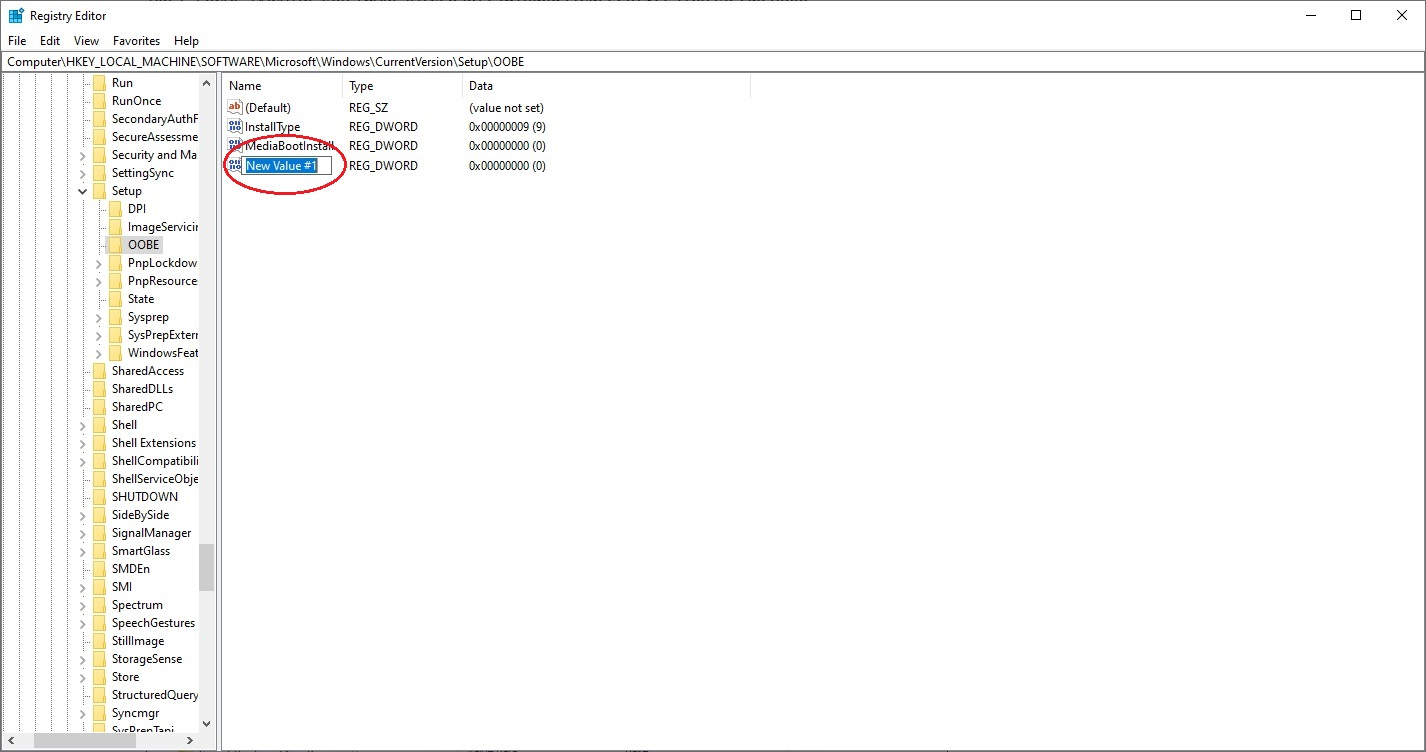
5. Rename the new entry “SetupDisplayedEula”:
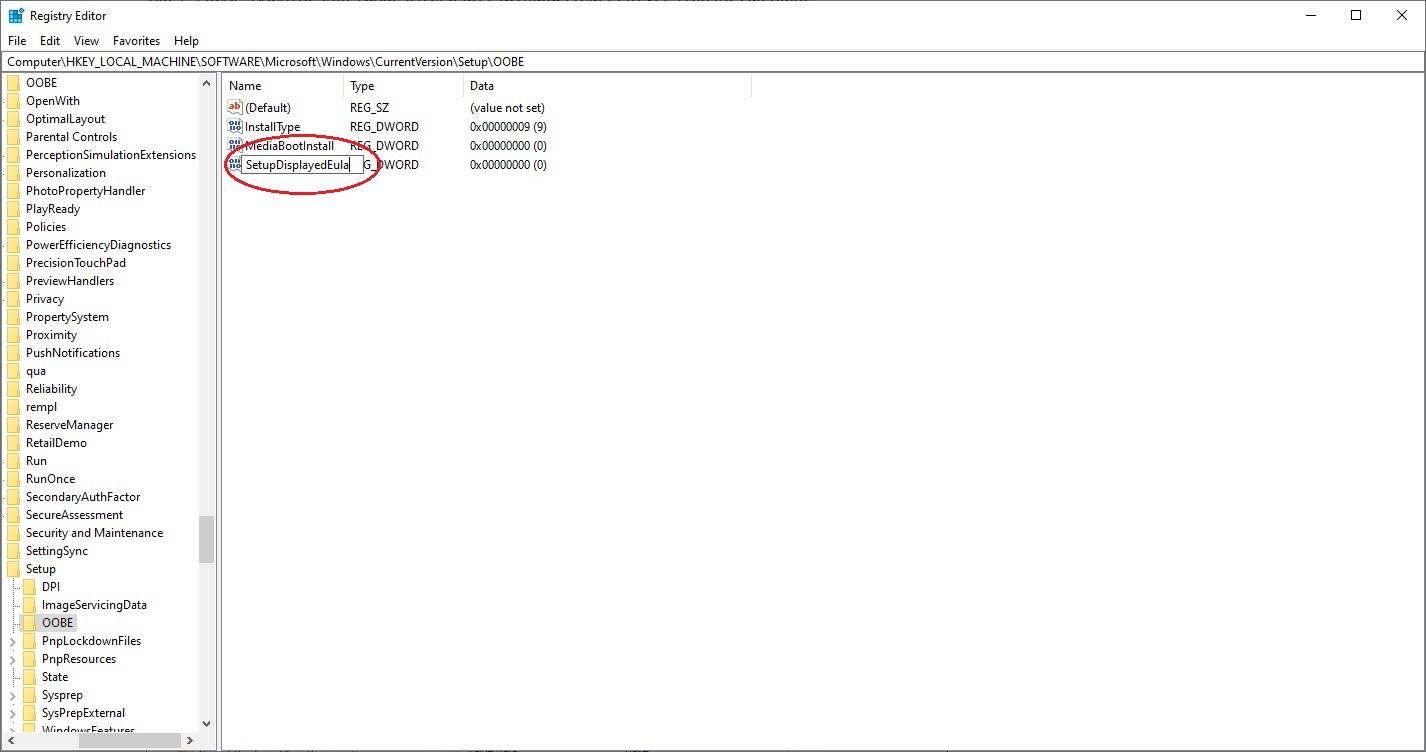
Then press Enter to save.
6. Double click the new “SetupDisplayedEula” entry to open it, then change the number in the “Value Data” field to “1”:
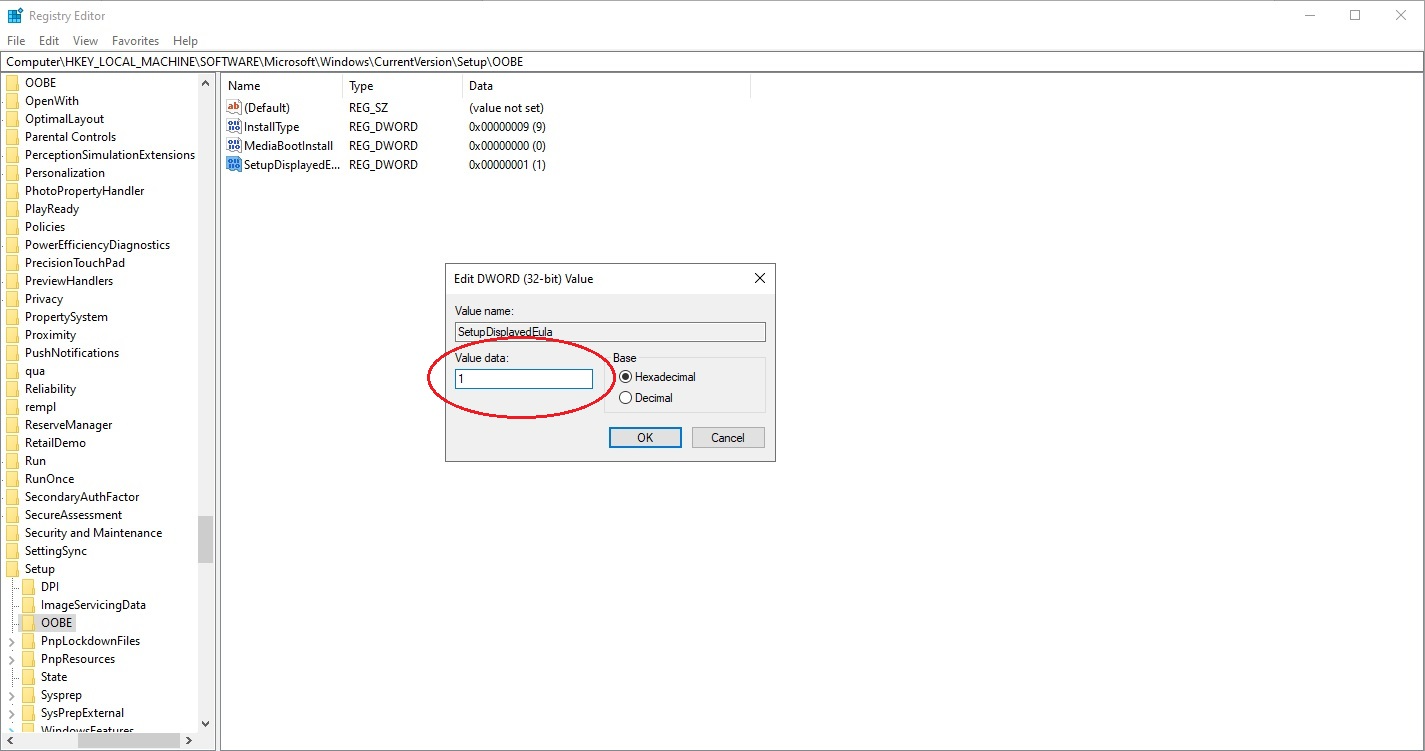
Click OK.
7. Close the Registry Editor by clicking on the cross in the top RH corner of the window:
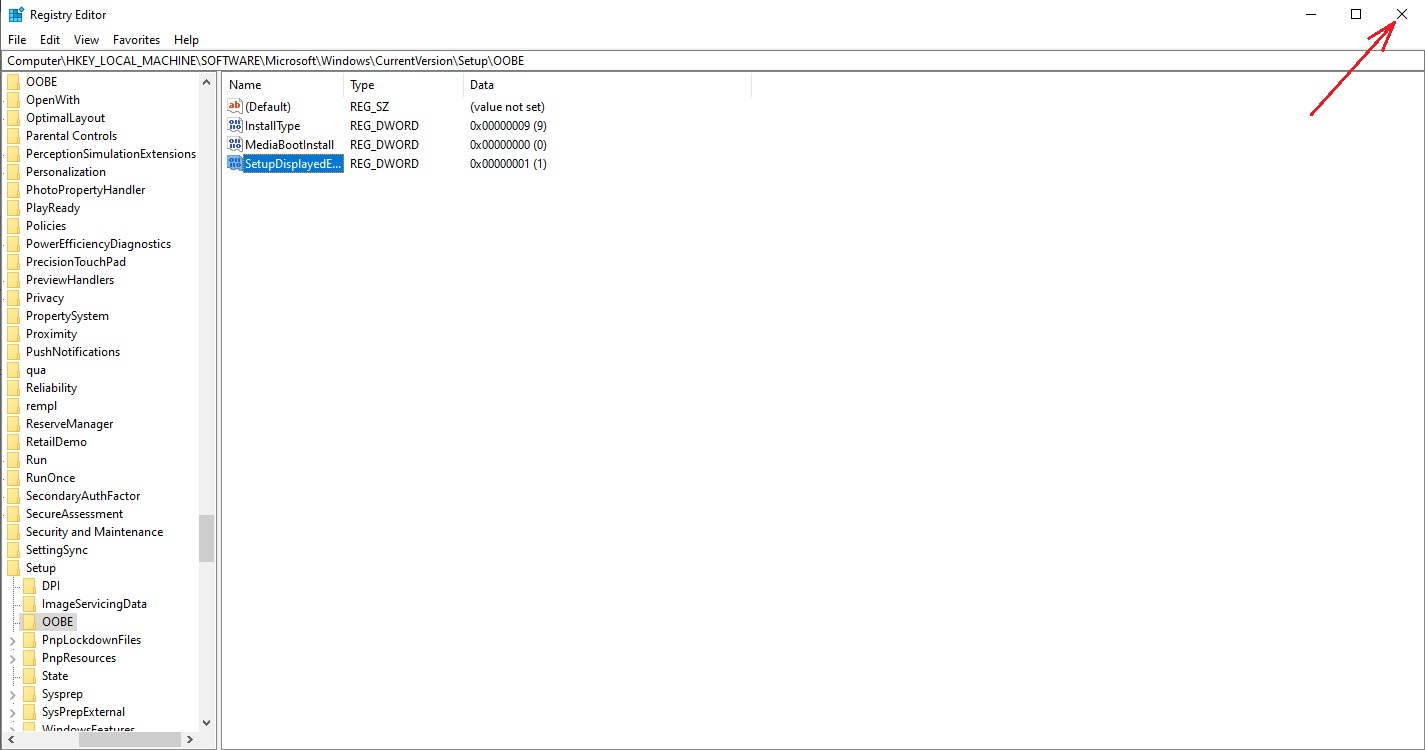
At the blue OOBEULA screen, click “Retry” and continue with the Windows setup as normal.
Was this article helpful?
That’s Great!
Thank you for your feedback
Sorry! We couldn't be helpful
Thank you for your feedback
Feedback sent
We appreciate your effort and will try to fix the article