Start Live Transcripts
Go to the meeting controls and select More actions (
 ).
).Choose
 Record and transcribe, and select
  Start transcription.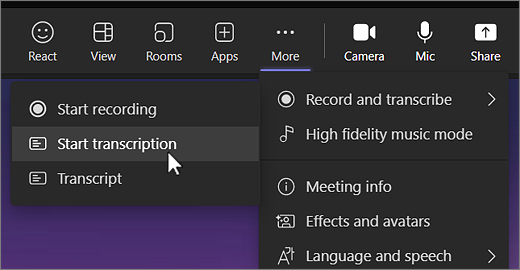
Change the transcript language
- You'll see the live transcription on the right side of your screen. At the top right of the transcript window, select Transcript settings
 .
. 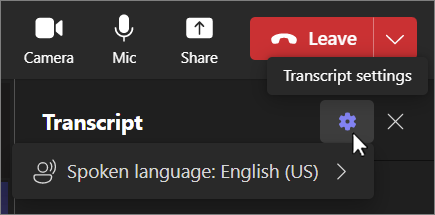
- Hover over Spoken language. and choose another language everyone in the meeting is speaking.
- Select Confirm. The transcript will now display in this language.
Stop & Start live Transcription
Go to the meeting controls and select More actions
 .
.Select
 Record and transcribe and choose Stop transcription or Stop recording (if a recording is in progress).
The transcription stops automatically when all participants leave the meeting.
Share Transcripts with participants
Select Chat on the left in Teams.
Open the meeting chat and select the transcript.
Above the transcript, select the down arrow next to
 Download and then choose the file type you want.
Attach the downloaded file to an email or teams chat to share with participants.
Was this article helpful?
That’s Great!
Thank you for your feedback
Sorry! We couldn't be helpful
Thank you for your feedback
Feedback sent
We appreciate your effort and will try to fix the article